> For the complete documentation index, see [llms.txt](https://ideogram.gitbook.io/docs/llms.txt). Markdown versions of documentation pages are available by appending `.md` to page URLs; this page is available as [Markdown](https://ideogram.gitbook.io/docs/create/custom-models.md).
# Custom Models
Train an Ideogram custom model with your images. Learn training requirements, image captions, draft readiness, model access and community publishing.
A custom model learns a look from images you give it, such as your brand style or an illustration style. After training, it applies that look to new prompts.
These steps cover the standard **Ideogram 3.0** training workflow. Check the **Base model** field on your draft: other base models and their settings can be available to some accounts. The controls and price shown on that draft apply to its training run.
## Who can train one
* **Pro** plan, in your personal space
* **Team** plan, in a team space
On other plans, **Create new model** opens an upgrade prompt. See [Available Plans](/docs/plans-and-billing/available-plans.md).
Training works on desktop only.
## What you need
* **15 to 100 images** of the style or subject you want.
* Files in AVIF, HEIC, JPG, PNG or WebP, up to 25 MB each. You can also upload a ZIP.
* Enough credits. Standard Ideogram 3.0 training shows 4,000 credits on **Start training**; check the displayed cost if your account offers another base. If you're short, Ideogram asks you to top up. See [How credits work](/docs/plans-and-billing/available-plans.md#how-credits-work).
If your project needs more than 100 training images, use **Talk to our team** where offered to discuss enterprise access. The standard limit isn't an unlimited-training entitlement.
Training usually takes a few hours. Ideogram notifies you when it's done.
## Train a model
{% stepper %}
{% step %}
### Open Custom Models
In the sidebar's **Create** section, select **Custom Models**.
{% endstep %}
{% step %}
### Create a model
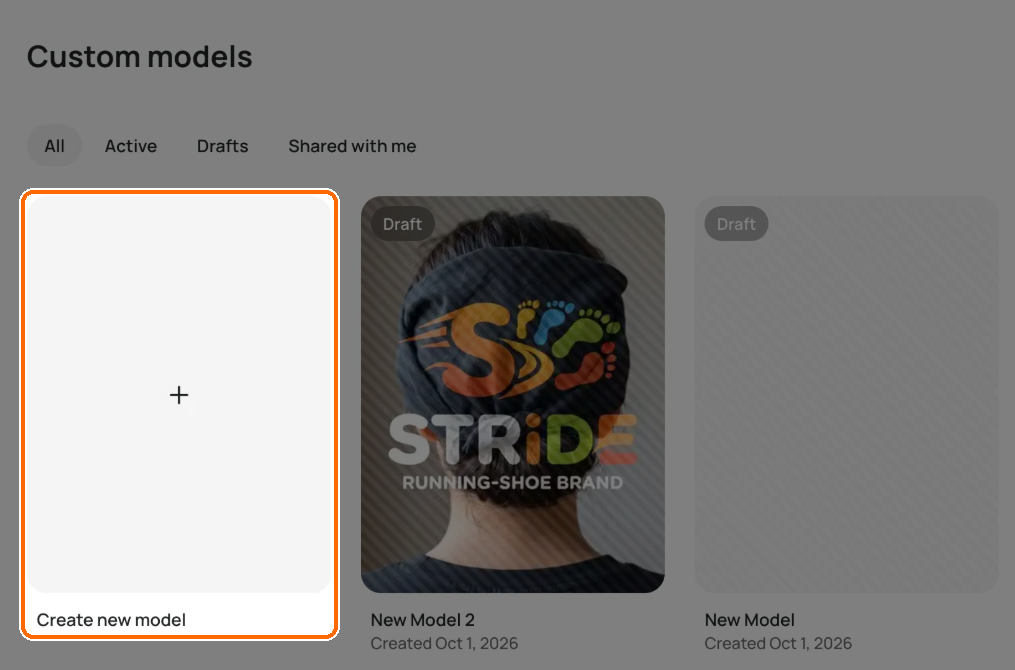
Click **Create new model**.
Click the tile with the plus sign to start a new model.
{% endstep %}
{% step %}
### Accept the terms
The first time, read the terms and click **Accept terms & Continue**.
{% endstep %}
{% step %}
### Add your images
Add your images with **Upload images**, or pull them in with **Select from** (My images or a collection).
{% endstep %}
{% step %}
### Caption your images
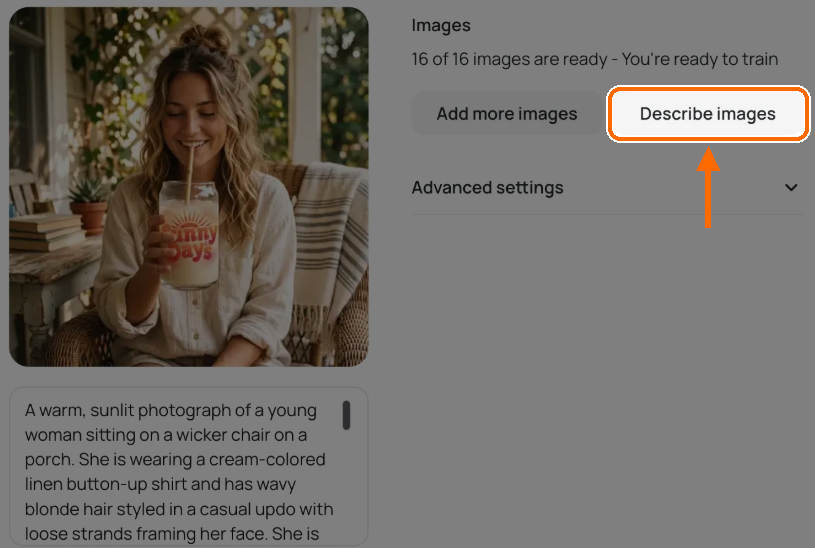
Click **Describe images** to write a caption for each image. Read the captions and fix any that are wrong.
Click Describe images. Each caption appears under its image.
{% endstep %}
{% step %}
### Check the base model
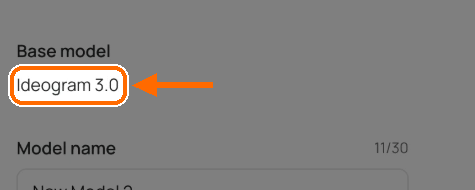
For the standard workflow, the **Base model** field reads **Ideogram 3.0**. Check this field rather than assuming every custom model uses the same base.
This draft uses Ideogram 3.0.
{% endstep %}
{% step %}
### Start training
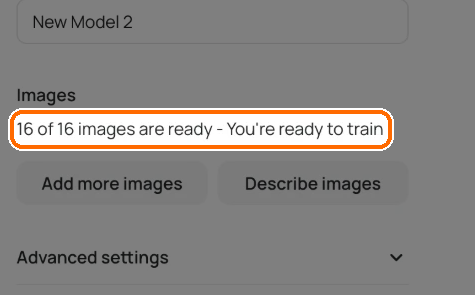
When you see "You're ready to train", click **Start training**.
Wait for this line, then start training.
{% endstep %}
{% endstepper %}
### Why is Start training unavailable?
Check that the model is still a **Draft**, that at least 15 images are ready, and that every image you attached has finished uploading and processing. Wait for **Describe images** to finish before starting training.
Review the readiness count in the Images panel. A file that is still uploading isn't ready simply because its thumbnail appears. If captions are missing, use **Describe images**, then review them. Some bases require every caption; the standard workflow can also show a missing-caption warning. Follow the warning on your draft before confirming training.
### Tips for a good training set
* **Quality over quantity.** A smaller set of strong images beats a large mixed one.
* **Add enough variety.** Show the style on different subjects, angles and settings.
* **Captions matter.** Make each caption say what is in the image.
For choosing images, writing captions, uploading captions in bulk and fixing a model that comes out wrong, see [Custom Model Training Tips](/docs/create/custom-models/custom-model-training-tips.md).
## Share your model
Your model starts private.
1. Open your model.
2. Click **Share** in the model's header.
3. Choose one:
* Share it with your team (in a team space).
* **Publish** it: "Make your model discoverable in the community gallery. Anyone will be able to find and use your model."
* Copy a link to it.
To take a published model down, click **Unpublish**.
### Does a model link make it public?
No. A model link and an access grant are different. In a team workspace, **Can use** grants team access and **No access** removes it. **Publish** makes a model discoverable in the community gallery. The shareable link appears when the model has access that allows it to be shared; copying it doesn't by itself grant access to a private model.
Before sending a model link, check both its team-access setting and whether it is published. Use **Unpublish** to remove community discoverability rather than assuming that deleting a copied link changes access.
## Use a custom model
1. In the Image app, open the **Model** picker.
2. Find your model under **My models**, **Team models** or **Recent**.
3. Write your prompt.
4. Click **Generate**.
Click **View all** in the picker to see more of your models.
### Use a community model
1. In the Image app, open the **Model** picker.
2. Click **Browse community models**.
3. Pick a model.
4. Click **Use model**.
5. Write your prompt.
6. Click **Generate**.
For a custom model built on Ideogram 3.0, the panel shows the [Ideogram 3.0 settings](https://ideogram.gitbook.io/docs/create/pages/JFpq87UvVKb2DYDQdwSa#ideogram-3.0-settings), without the **Style** select. A model built on another available base uses that base's supported controls.
Where your plan and the file validation allow it, you can also run custom-model rows in [Batch Generation](/docs/create/batch.md#supported-models). Batch has its own model and setting restrictions.
## In this topic: consistent results
1. [Reference Images](/docs/create/reference-images.md): guide a result with your own images
2. [Characters](/docs/organize-and-share/characters.md): save a character and reuse it
3. **Custom Models** (this page): train a model on your style or product
4. [Training Tips](/docs/create/custom-models/custom-model-training-tips.md): build a training set that works